

In the era of digitization and the accelerated pace of daily business, the need for clear and high-quality electronic copies of documents has become indispensable, whether for academic, professional, or personal use. Here emerges Scanning documents using CamScanner easily, professionally, and efficiently, as it allows you to turn your smartphone into a mobile scanner with a single touch.
In this article, we will guide you step-by-step on how to scan any document using CamScanner in a professional way that guarantees high quality. You can use the images for all official matters with full confidence.
Steps for scanning documents using CamScanner to get clear and professional images
You can use the CamScanner app to easily photograph any official document, such as a passport, as we explained previously in Article: How to open a blocked bank account with Fintiba – Detailed guide for travelers to Germany.
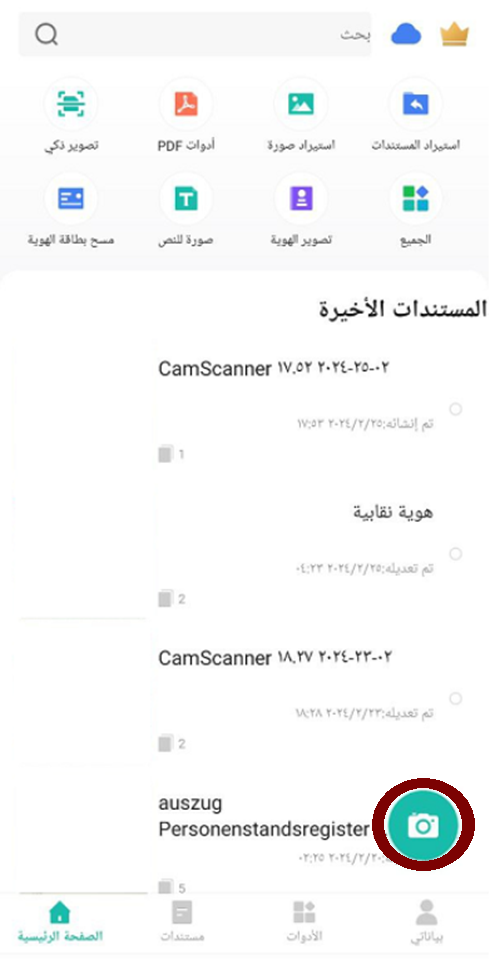
First, install the CamScanner app through this The link on the Google Play Store. After installation, open the app to see the main interface, then tap the camera icon highlighted in maroon to start taking pictures.
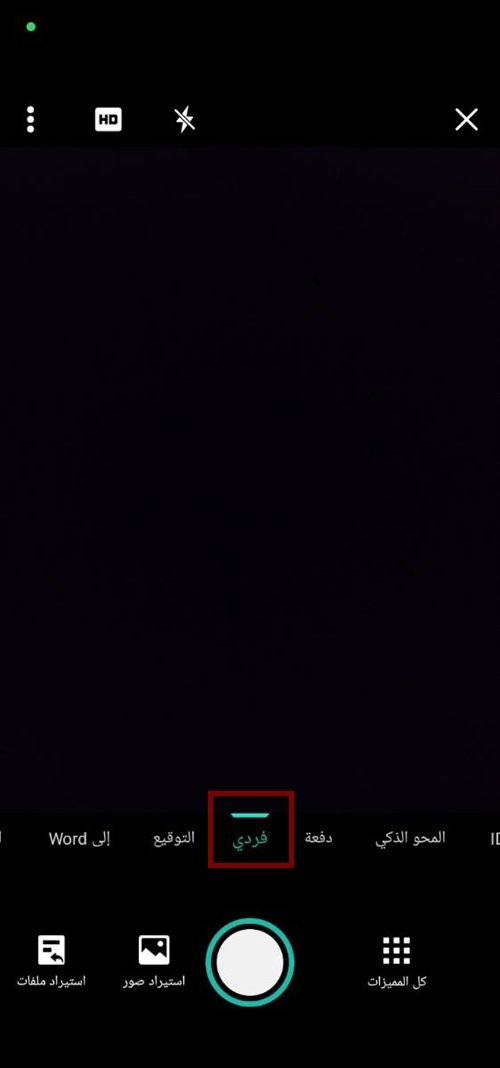
When the next screen appears, first make sure to select the documents mode The one indicated in burgundy. After that Tap the camera button at the bottom To capture the desired photo with ease.
After taking the photo, the app displays a smart feature that automatically detects the edges of the paper.which contributes to obtaining a clear and accurate image without the need for a special image editing program afterwards.

In case Captured The image of the document is upside down. You can simply use the rotation buttons at the bottom to adjust the image orientation.
However, if the edges of the paper are not precisely defined, the app allows you to adjust this manually. Just drag any of the white circles surrounding the document, and the selected circle will appear magnified at the top of the screen, making precise adjustments easy. This magnified area is highlighted in burgundy, as shown in the image.

After finishing adjusting the edges of the document, we move to the next step by clicking the Next button at the bottom right of the screen.

At this stage, the document appears fully before us so that we can take a comprehensive look at it before saving it. If the image quality is suitable, we can confirm the process by clicking on the checkmark located at the bottom right of the screen.

How to easily choose, name, and save file formats in your own files
Next, a new window appears allowing us to continue working. In this step, we click on the maroon-colored camera icon to take a picture of an additional page. Once we finish photographing all the required pages, we move to the top of the screen and tap the PDF icon to create a file containing the entire document in the desired format.

In the next step, the program displays the captured images in an organized format for review before saving. At this stage, we can easily edit the file name by clicking on the field indicated at the top of the screen. After finishing the edit, we click on the share option located at the bottom to share or save the file.

Next, we move on to saving the file to the device by clicking on the icon marked in burgundy. Once clicked, a window for selecting the save location appears. Here, we can select the appropriate folder within the device, and then click on the paste button located at the bottom right of the screen.


Using the simple steps we reviewed, you can now rely on the CamScanner app to document your files in high quality and with complete professionalism, without the need for complex scanners or additional software. In addition to capturing images, the app features smart and efficient file organization and sharing that greatly facilitates your work. Therefore, we recommend trying the app consistently, and you will notice a clear difference every time you need to send or save a document in an official and organized manner. Do not forget us in your prayers, and our final prayer is that praise be to God, Lord of the worlds.