
In this guide, we will walk you through the step-by-step process of creating an account on the Care Concept customer portal. We will cover how to log in and activate the account securely and quickly. We will also explain how to activate two-factor authentication using the Google Authenticator app, link your health insurance contract to your Care Concept account, and track all details electronically. Therefore, you will be able to manage your health insurance documents easily, with an organized and secure user experience.
The importance of the Care Concept customer portal
The Care Concept customer portal is the fastest way to manage your health insurance, through which you can:
- View contract details.
- Download, manage, and track all insurance documents electronically and securely.
- Edit contract data when needed.
- Submit or upload the required invoices and documents.
- Making important adjustments when necessary, such as postponing.
The portal also provides a live support service via Live Chat At the bottom of the page. In addition, the portal provides the ability to contact customer service via phone or email in case of any inquiries.
Steps to register in the Care Concept customer portal
A person must first complete the registration for a health insurance contract with a company Care Concept And fill out the form completely. The company's various health insurances have been explained in the comprehensive guide article.
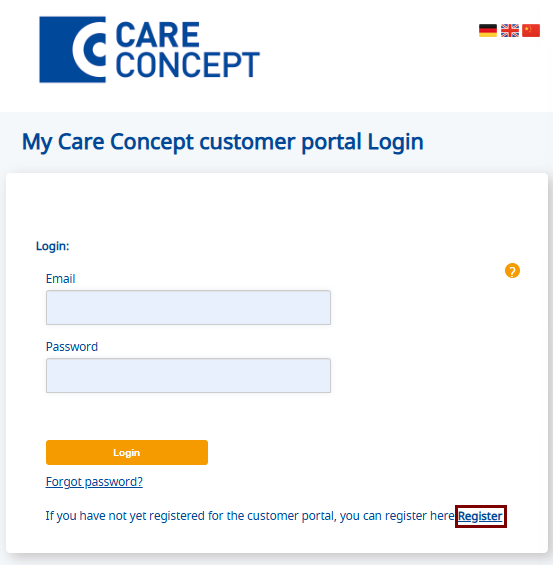
After completing the registration, you log in to The link for the customer portal. We create a new account by clicking on the option Register At the bottom of the page.
Choose your appropriate health insurance through an article The Comprehensive Guide to Insurance Care Concept Health].
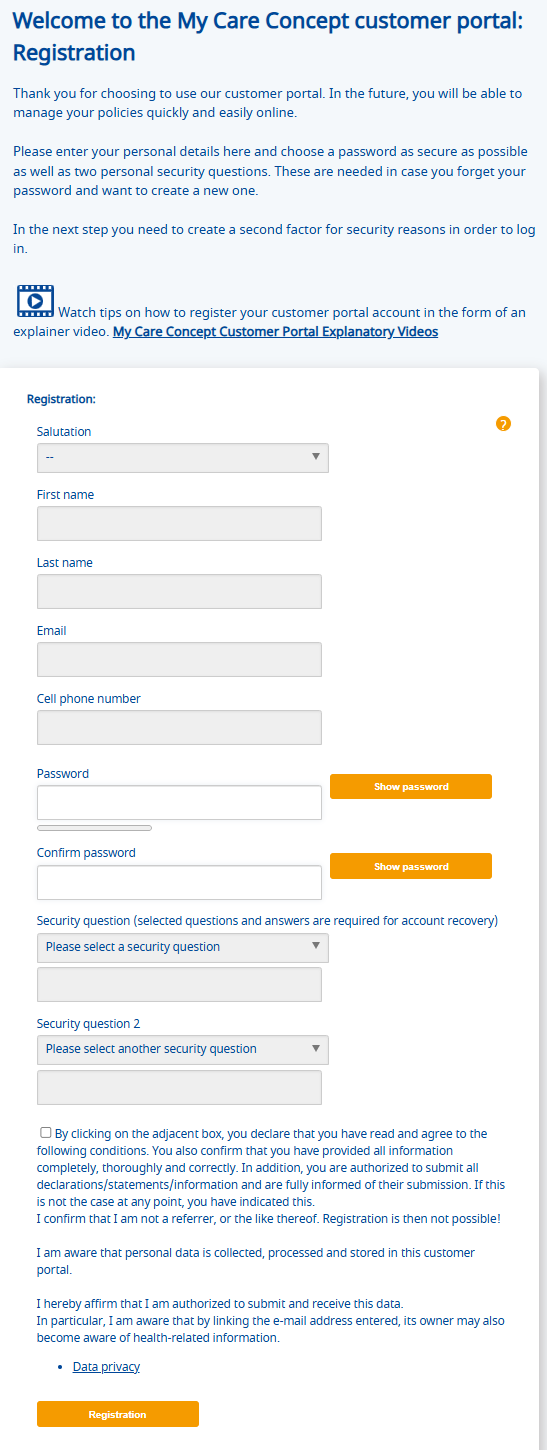
After clicking the option Register, you will be redirected to the customer portal registration page to create a new account. Personal data such as name, email address, phone number, and password are entered. You must use the same email address that was registered during the insurance application process. You will be asked to choose security questions to be used later in case you need to recover your password.
Then, the box at the bottom is checked to agree to the terms and conditions, as well as to confirm the accuracy of all entered data. After that, we click on the option Registration At the bottom.
Confirm email and activate account
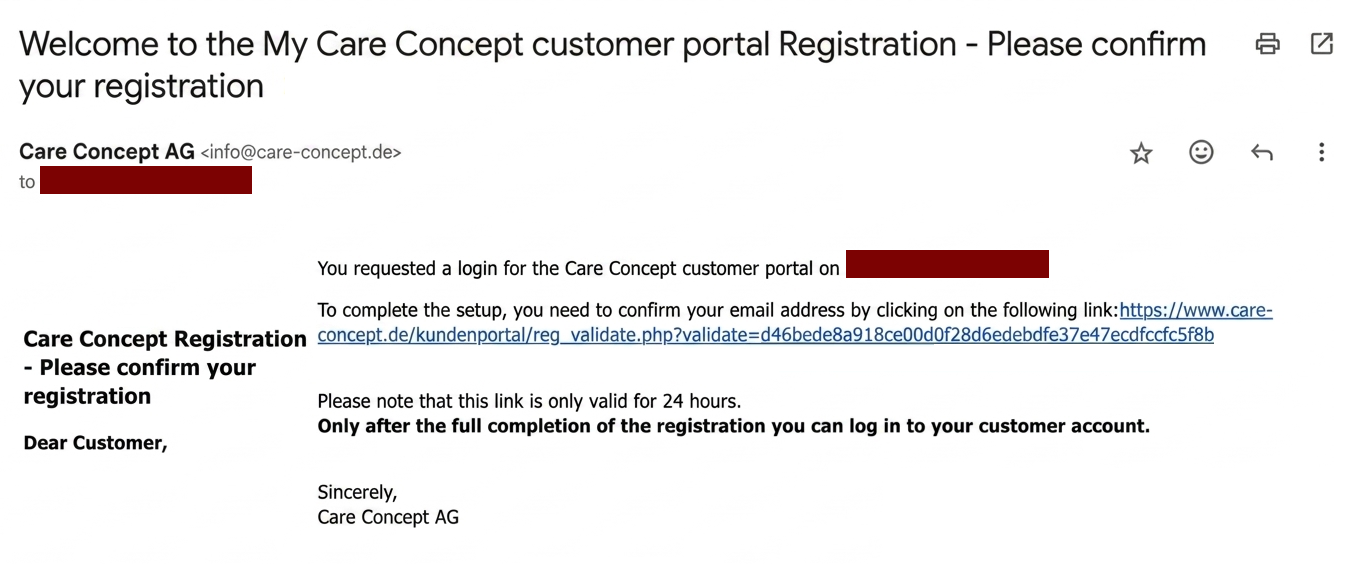
After creating the account, an email is sent containing a link to confirm the registration. The user must click the activation link to fully complete the account activation process. The message states that the link is valid for 24 hours only. After this period expires, a new link must be requested if activation has not been completed.
Enable two-factor authentication to protect the account
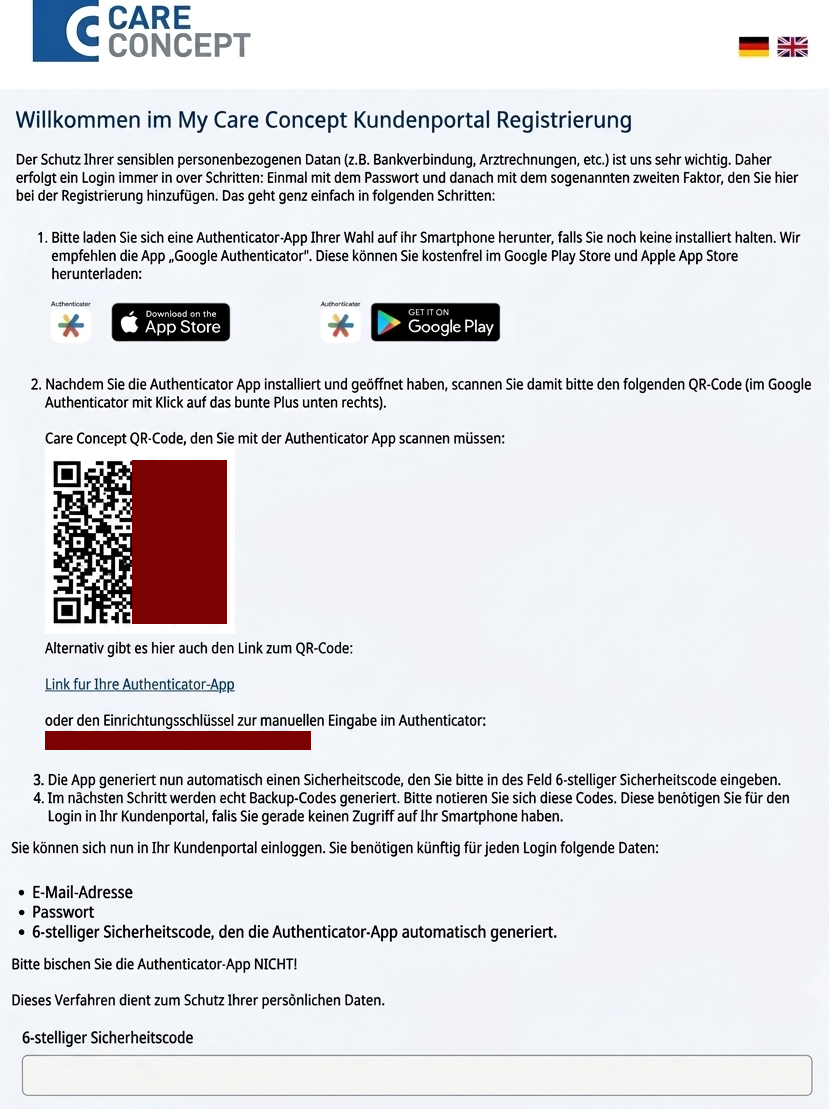
Once the email is successfully confirmed, the account is activated, and the interface for enhancing account security appears. Care Concept relies on Two-Factor Authentication to protect sensitive data such as personal information, banking details, and medical invoices.
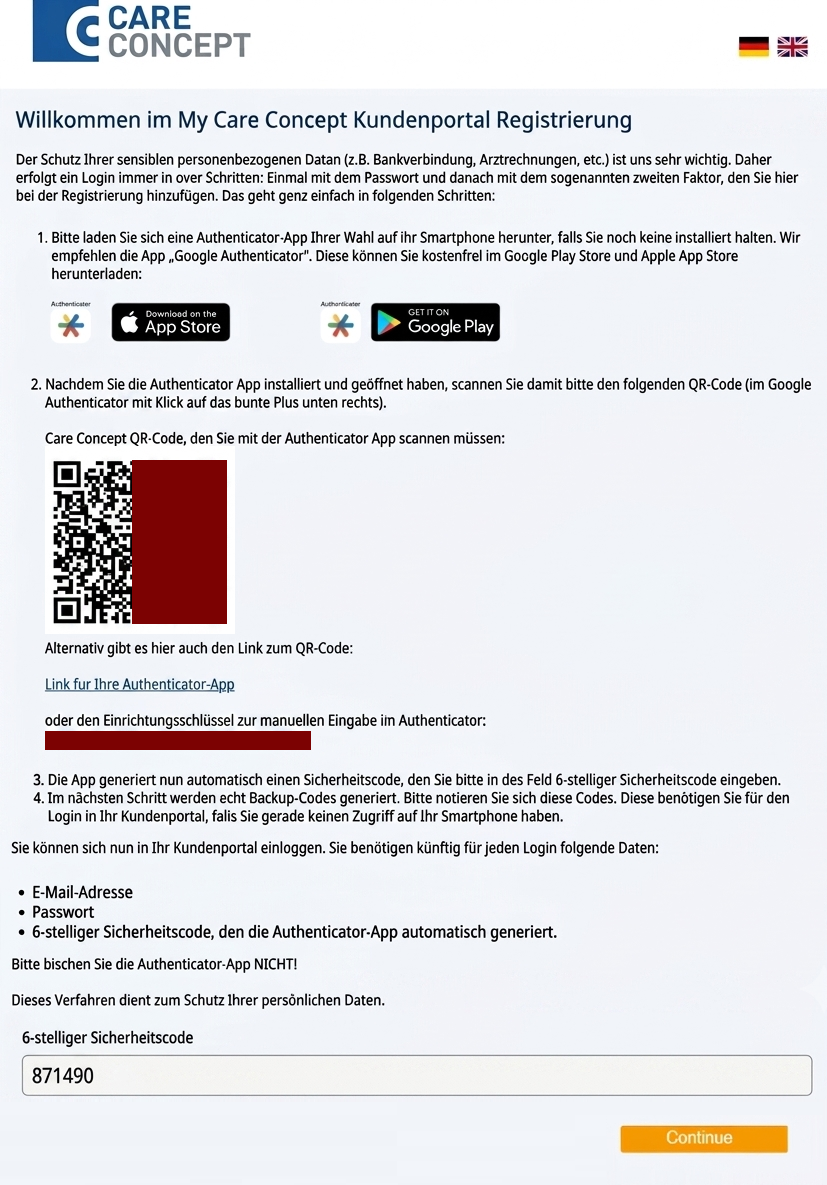
First, you need to download the Authenticator app on your mobile phone, such as Google Authenticator. As shown in the image, Android users can easily download the app via the Google Play Store, while iOS users can download it via the App Store.
Care must be taken not to delete the application. Google Authenticator After downloading it, because we will need it every time we log in to an account Care Concept.
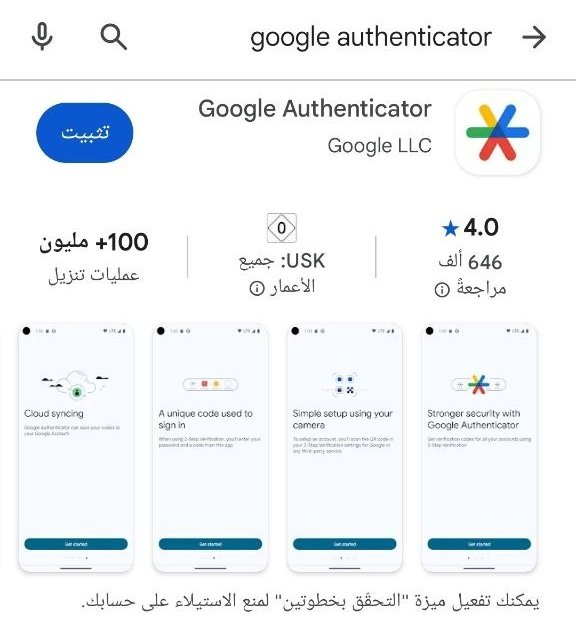
As shown in the image, this is an application Google Authenticator On the Google Play Store. The button is pressed Install To start downloading the app to your phone.
After that, the application interface appears to us in this way. The button is pressed Start Below to start two-factor authentication.

After that, you log in to the application by creating a new account, by clicking on the option Email.
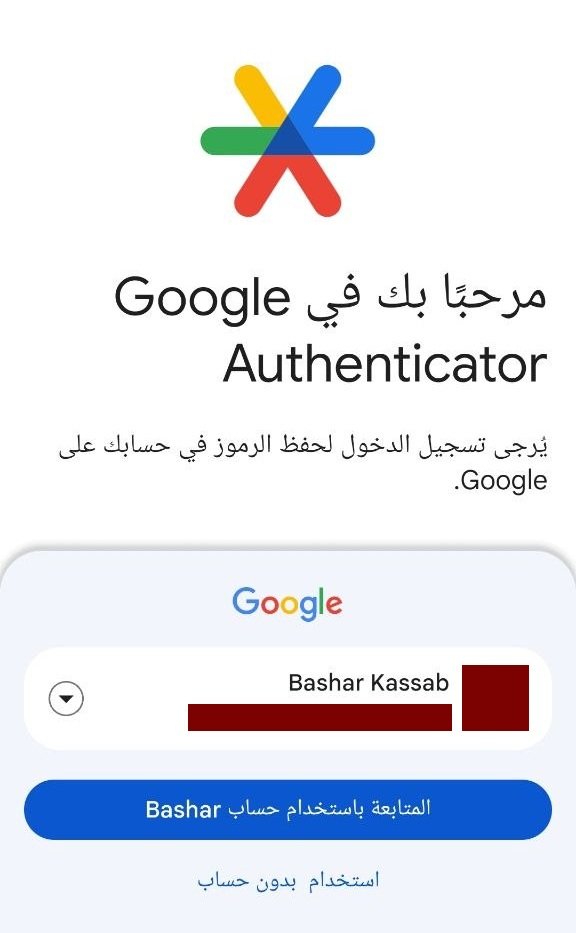
After that, an account is added to the application Google Authenticator To start activating two-factor authentication, this is done by clicking on the icon “+” At the bottom of the app.
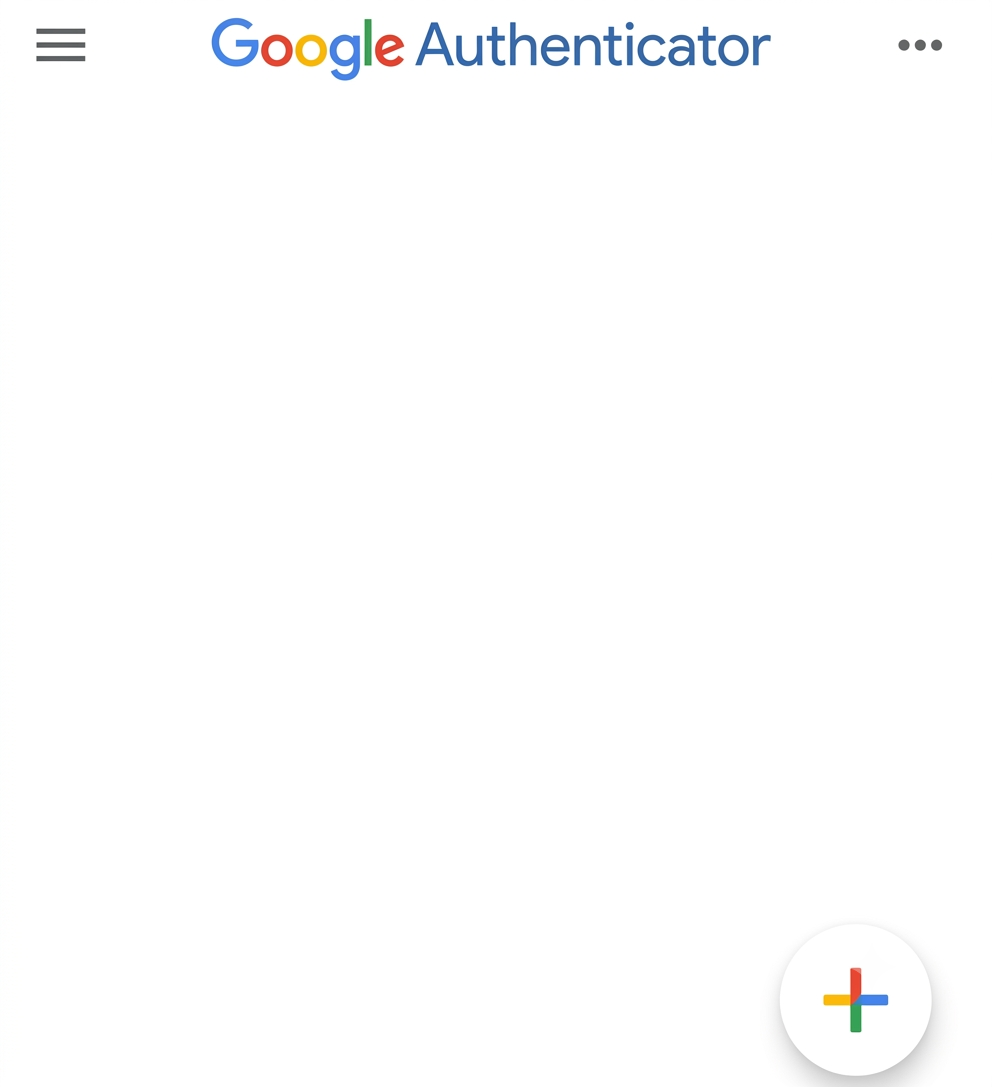
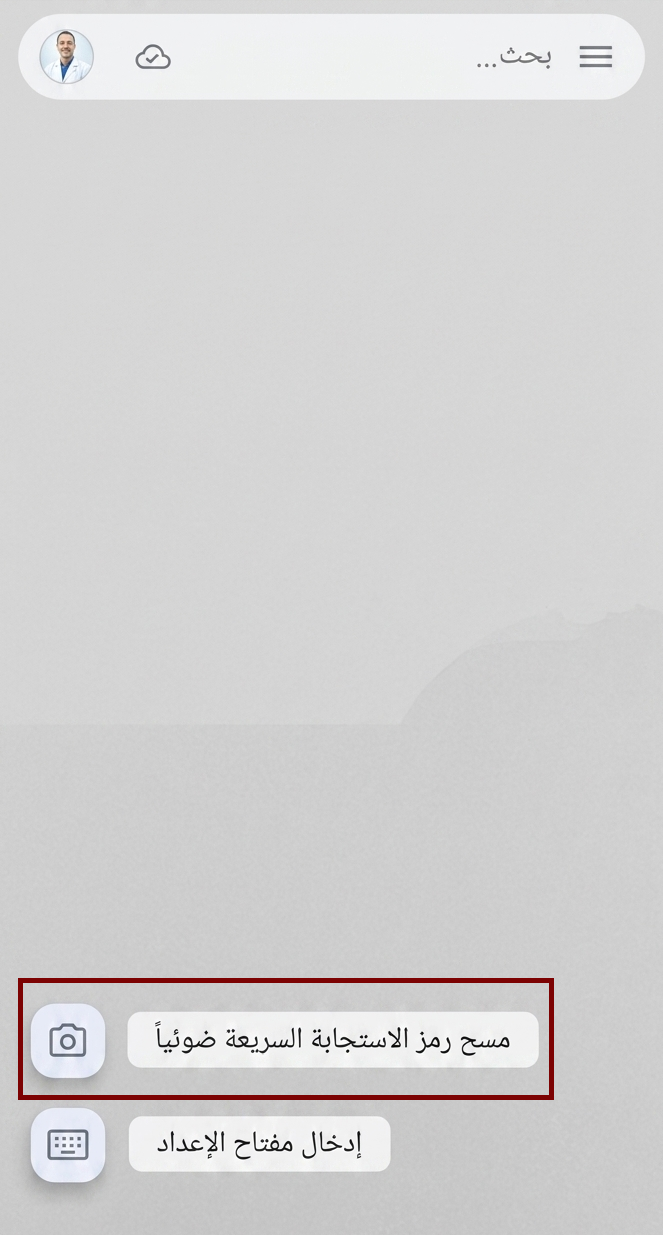
Then click on the option “Scan QR Code”. After that, return to the Care Concept welcome message shown in the second image to scan the QR code, or enter it manually into the Google Authenticator app to complete the linking process and enable two-factor authentication.
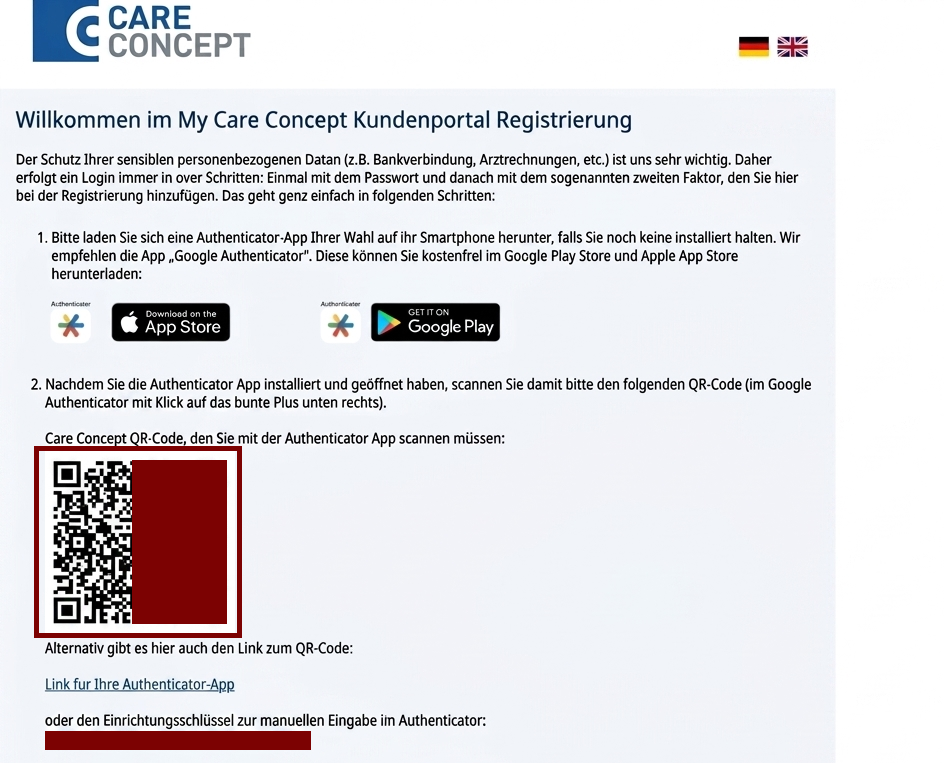
A 6-digit code then appears inside the Google Authenticator app and is entered into the designated field below. It is important to note that this code is valid for only 30 seconds. In case of a delay, the code expires, and you must scan the QR code again to complete the activation process.
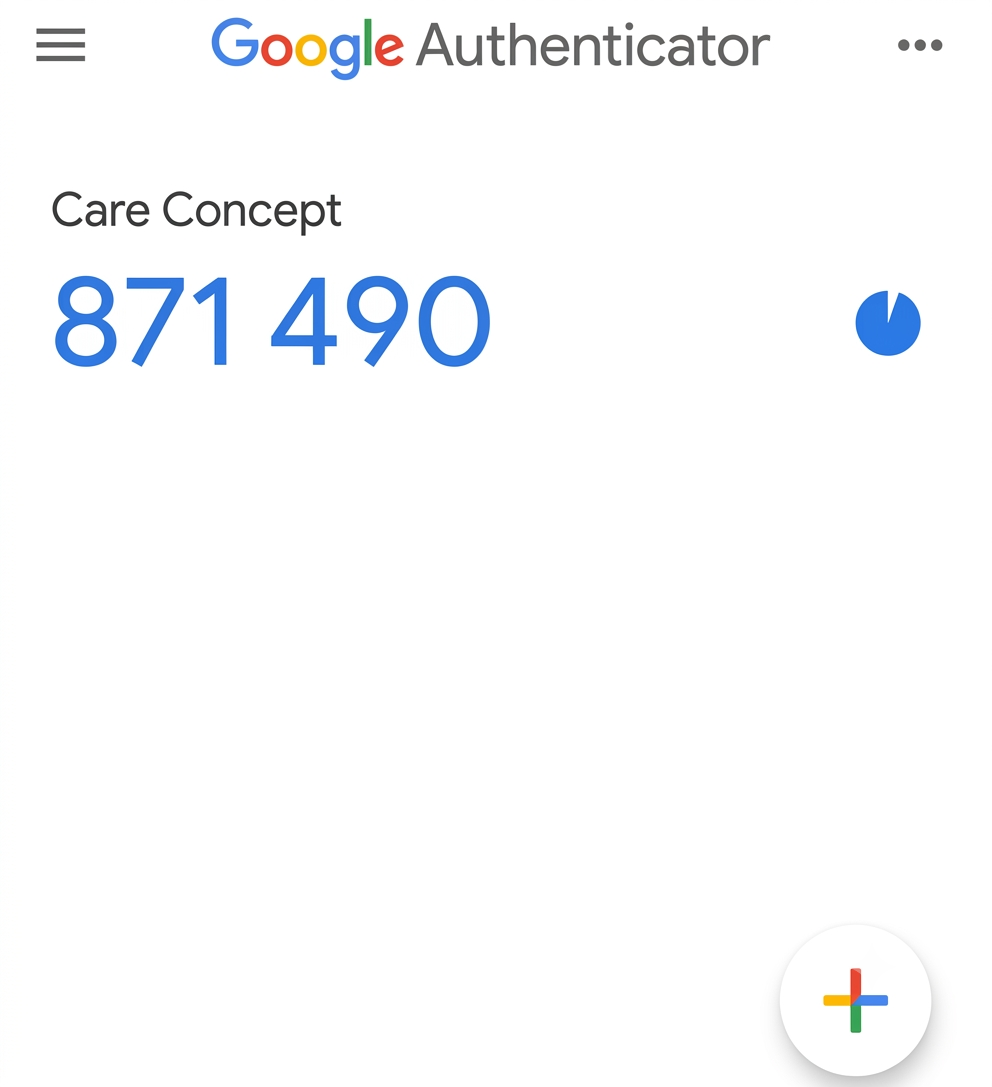
After entering the six-digit activation code, press the button Continue The contents below to complete the two-factor authentication activation process and proceed to the next step.
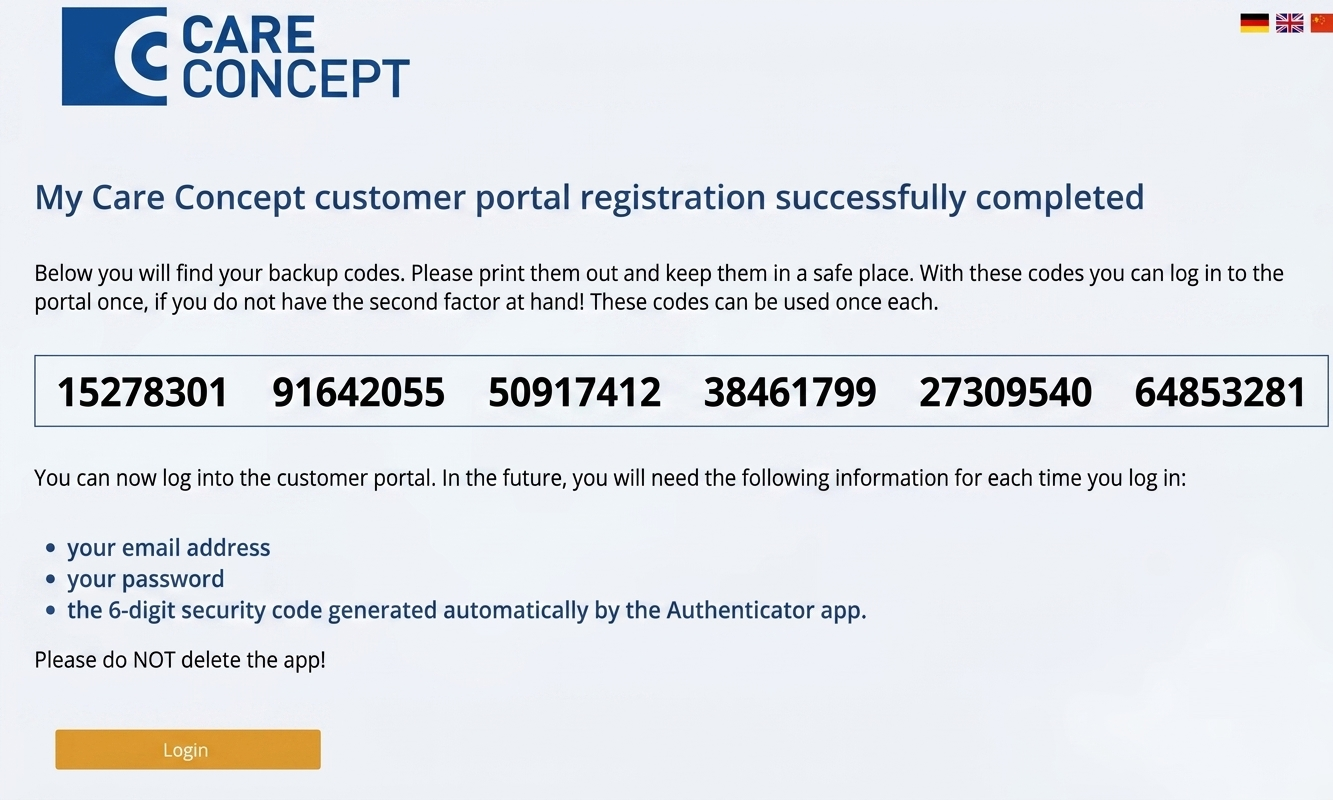
Backup codes Care Concept account
Then appears a group of Backup Codesand it is very important to keep them in a safe place or print them out, as each code can be used once to log in to the customer portal if the phone is unavailable or the Google Authenticator app cannot be accessed.
As the page also clarifies, future logins will require three elements:
- Email.
- Password.
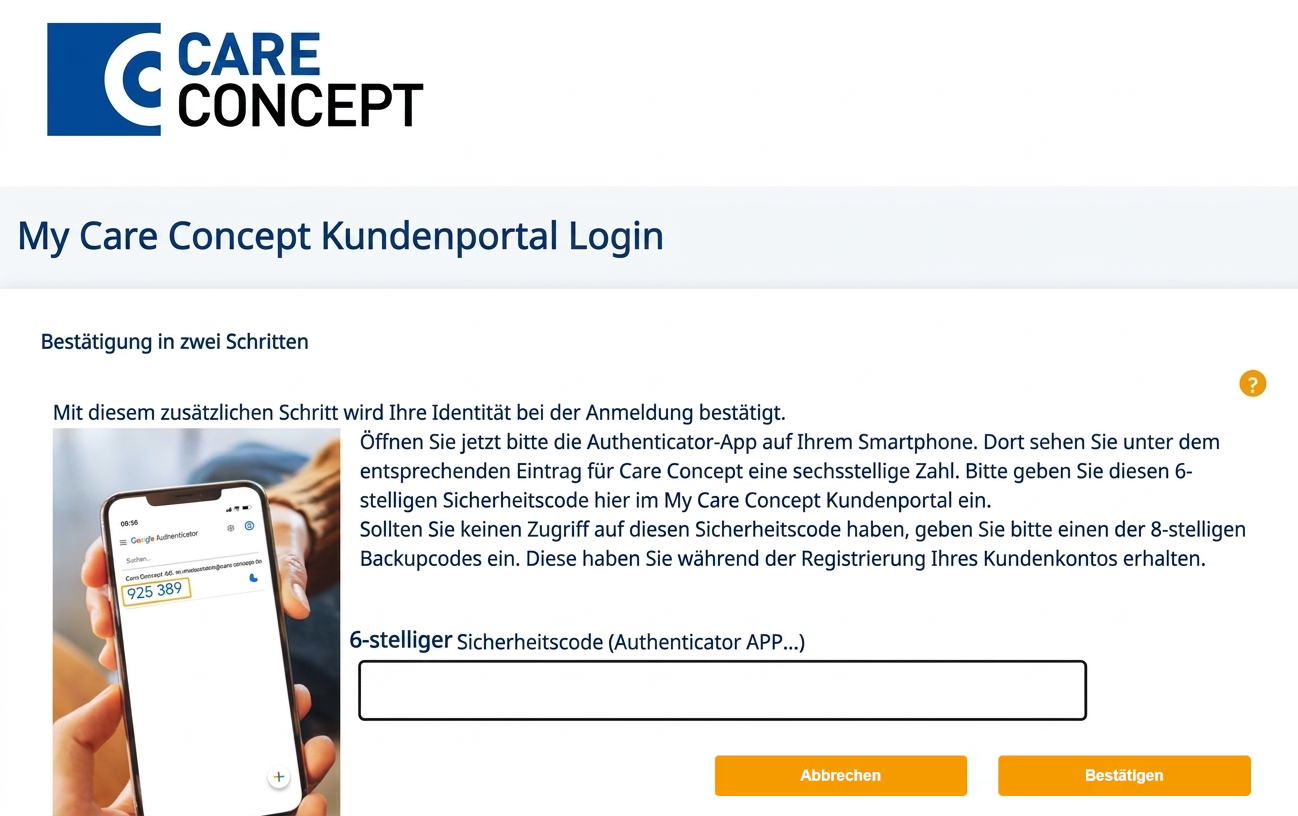
- The six-digit verification code automatically generated each time by the Google Authenticator app.
It is very important to remember not to delete the Google Authenticator app, as it will be required every time you log in to your Care Concept account.
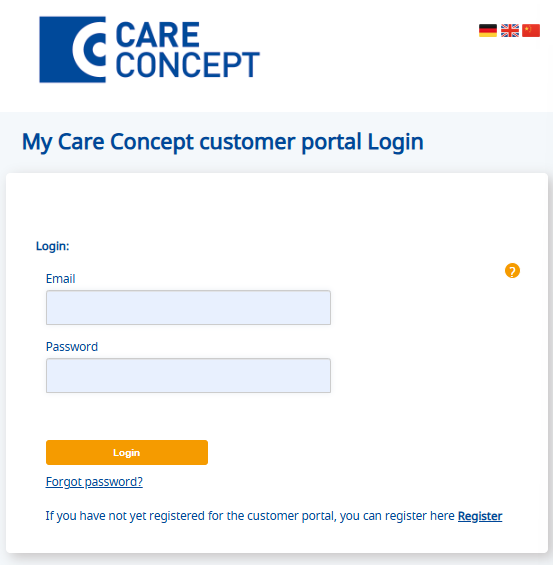
Log in to your Care Concept account
We are now logging into the Care Concept account through the customer portal, using the email and password, in addition to the six-digit verification code generated by the Google Authenticator app.
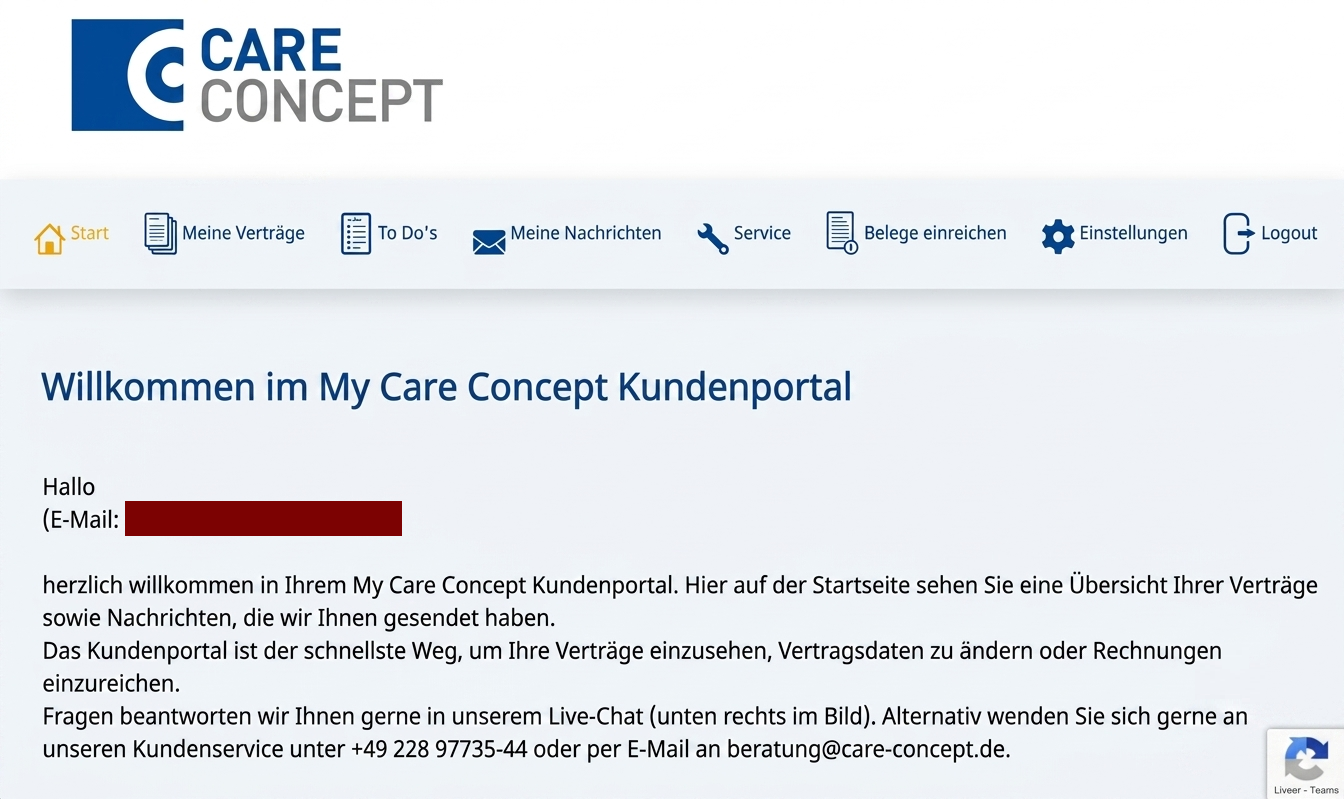
After successfully logging in to Care Concept account, the user's main welcome page appears as shown in the image. This page provides an overview of all the user's contracts as well as the messages sent by Care Concept.
We click on the option “Settings” At the top in order to link the health insurance policies to our account within the customer portal.
Linking the health insurance contract to the Care Concept customer portal
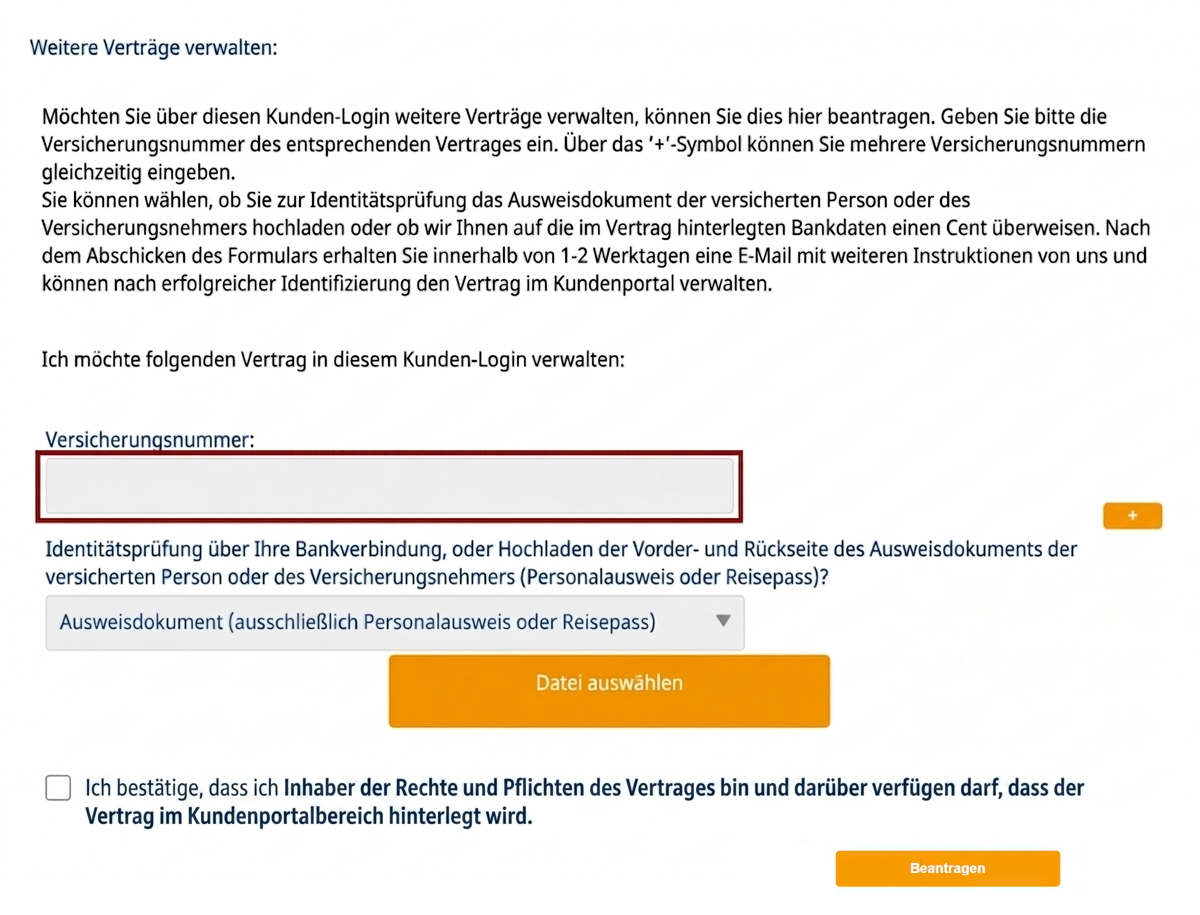
The insurance policy number is entered to link the insurance contract to an account. Care Concept In the customer portal, the insurance policy number is the number obtained directly after completing the insurance registration form.
The identity verification method is then selected, as the company provides two options:
- Upload a photo of an identity document (ID card or passport) of the customer or insured. This option is the easiest.
- Verification via bank account data.
After uploading the identity verification document, click the button „Apply“ below, after checking the box that includes a declaration that the user is the holder of the rights and obligations of the contract and is authorized to manage and link it to the customer portal.
An email with additional instructions to complete the verification process is then received within 1 to 2 business days. After successful completion of the verification, the contract becomes fully available to management within the customer portal.
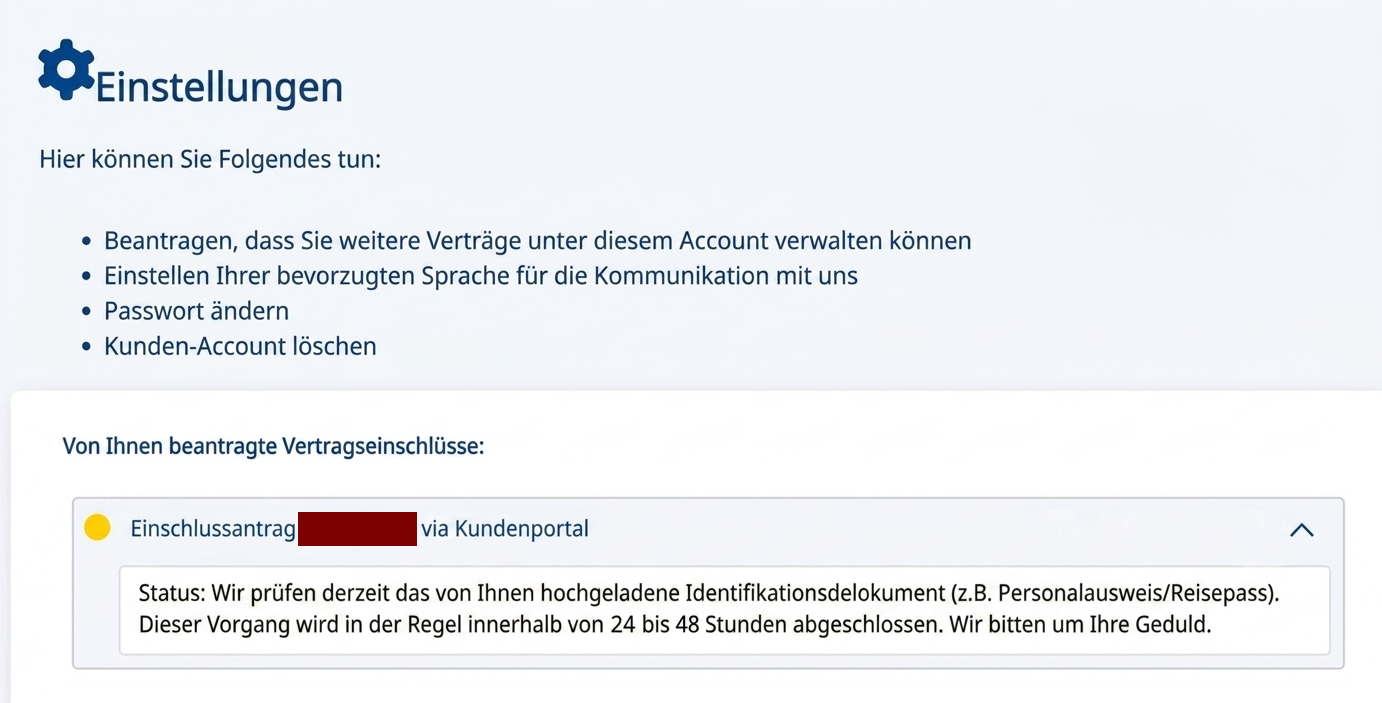
After that, a message appears „Enrolment application via customer portal“ Regarding the order status, which indicates that the company is currently reviewing the uploaded identity verification document (such as an ID card or passport).
The message explains that the review process typically takes 24 to 48 hours.
Conclusion
In conclusion, you are now able to fully use the Care Concept portal. You can also log in and track your insurance policies at all times. In addition, the system helps you upload documents and edit your data easily. Therefore, the portal provides you with an integrated digital experience for health insurance management. Finally, this guarantees you quick access to your services without complication or delay.