

After opening the blocked bank account via Fintiba, the next important phase begins immediately, which is setting up the Fintiba blocked account. In this step, personal information is completed and the required documents for the blocked bank account are uploaded. Completing this information is a prerequisite for obtaining the blocked account confirmation file from the Fintiba platform. This confirmation is among the required documents for the entry visa to Germany. In this article, we explain step-by-step the phase of setting up the Fintiba blocked account with explanatory images that detail the procedures.
Before starting to explain the practical steps, it is important to watch the video related to this article, which I published on my YouTube channel, as it contributes to forming a general idea about the process of setting up the Fintiba blocked bank account to receive funds.
The first step to start setting up your Fintiba blocked account.
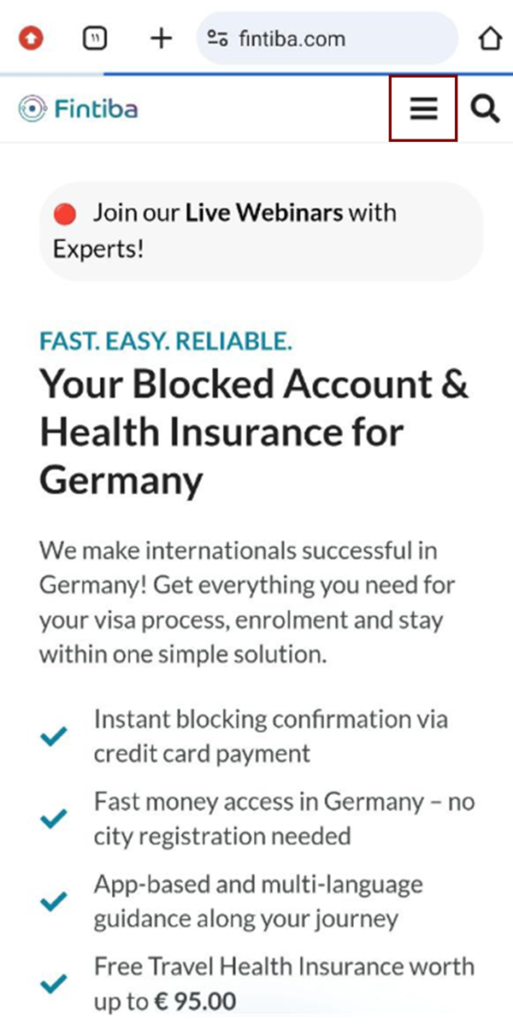
After opening the blocked account, we log into our account either by Fintiba website or the mobile app. The website appears to us before logging in as shown in the image, so we click on the three lines at the top right of the screen.
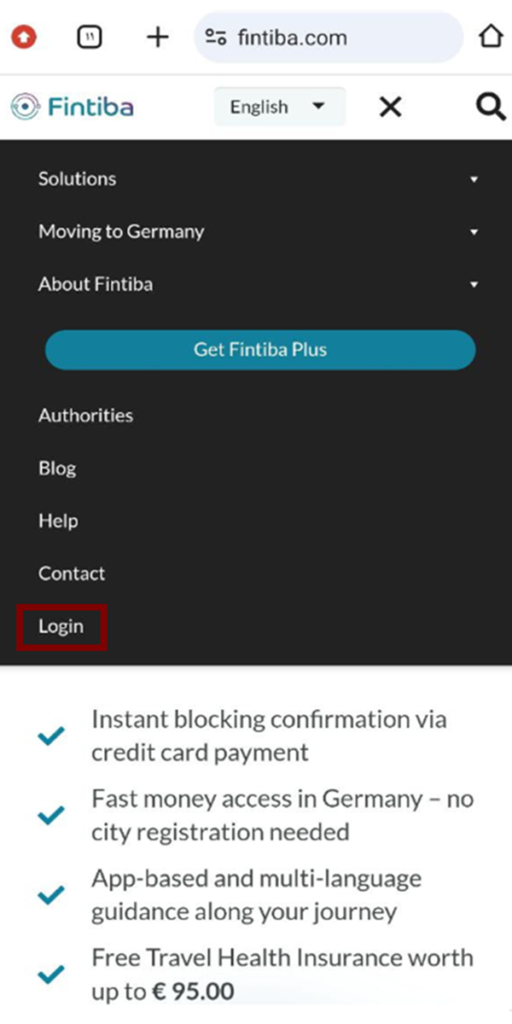
The following window appears, so we click Login to log in to the account.
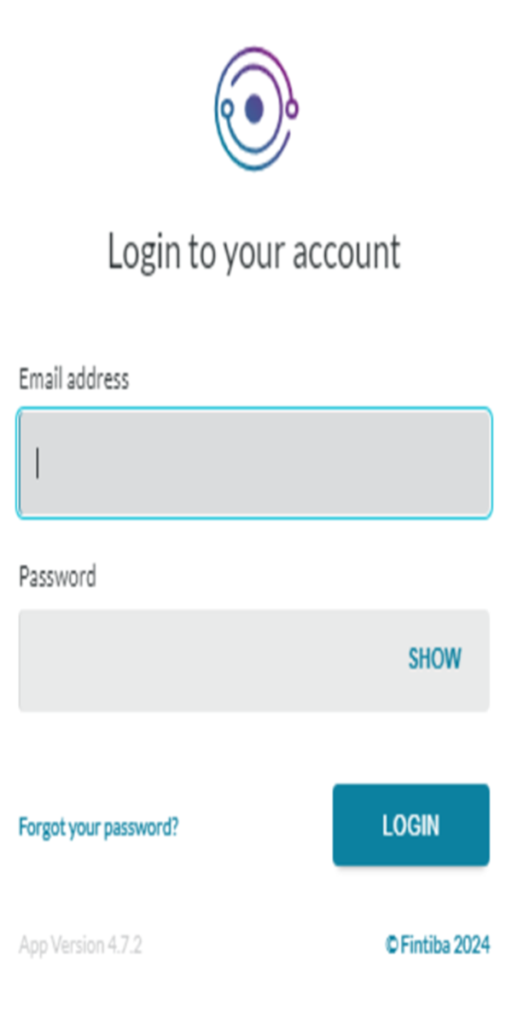
We enter our email address and password.
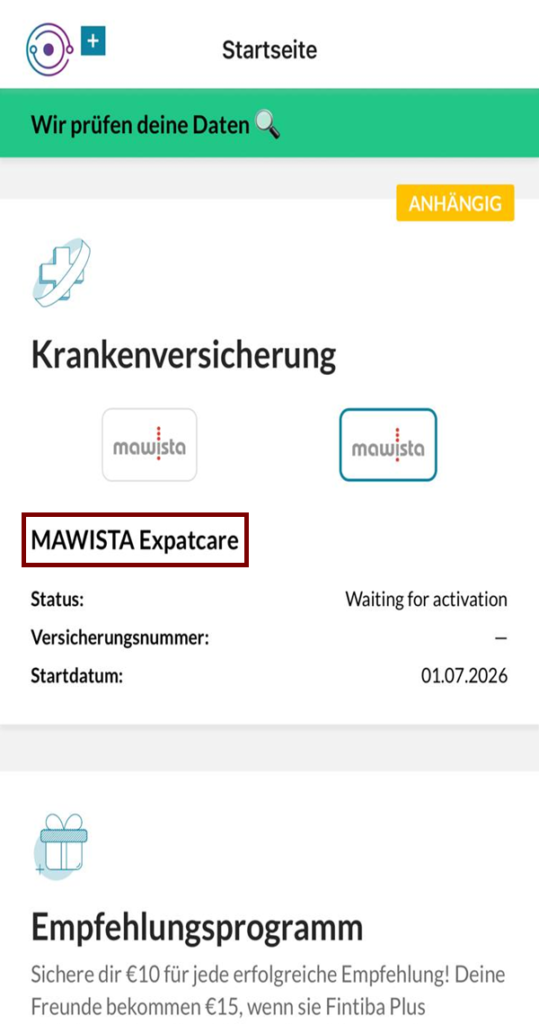
It is important to make sure initially that the type of insurance on the account is Student insurance and not Expatcare insurance, as there is currently a technical issue that causes Fintiba to select Expatcare insurance even though the person did not select it initially.
To find out at the beginning which type of health insurance is in the account, we scroll down and see Expatcare as indicated in the picture. Here, we contact support to change it to Student Classic insurance through the new way of contacting Fintiba that I posted a video about, Click here to watch the video on my YouTube channel.
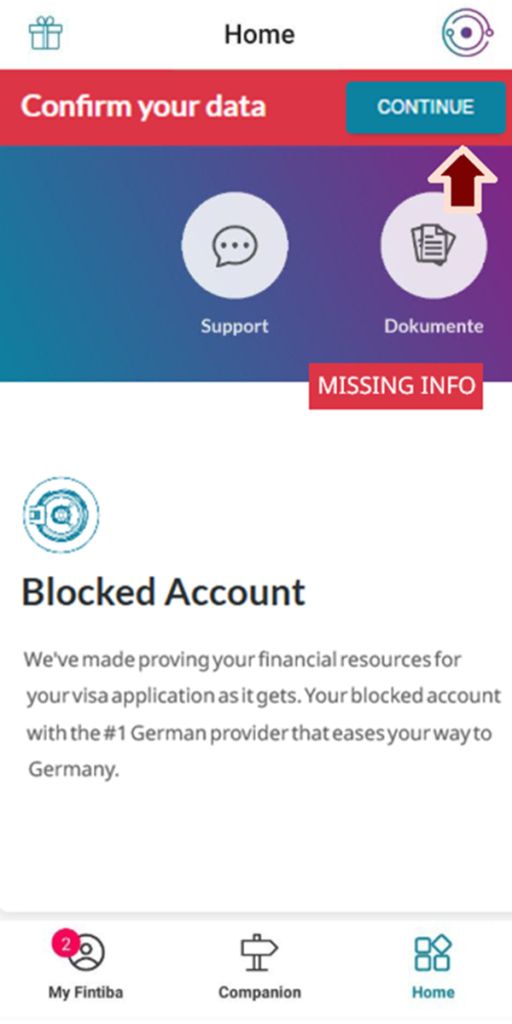
When logging into our suspended account, this window appears. As we can see at the top, a notification appears regarding what needs to be done on the account, which is to confirm the data. We click on the "Continue" option indicated by the maroon arrow in the image.
Please note that this option may not be visible to everyone. If it is not visible, you can proceed to the next step regarding passport information.
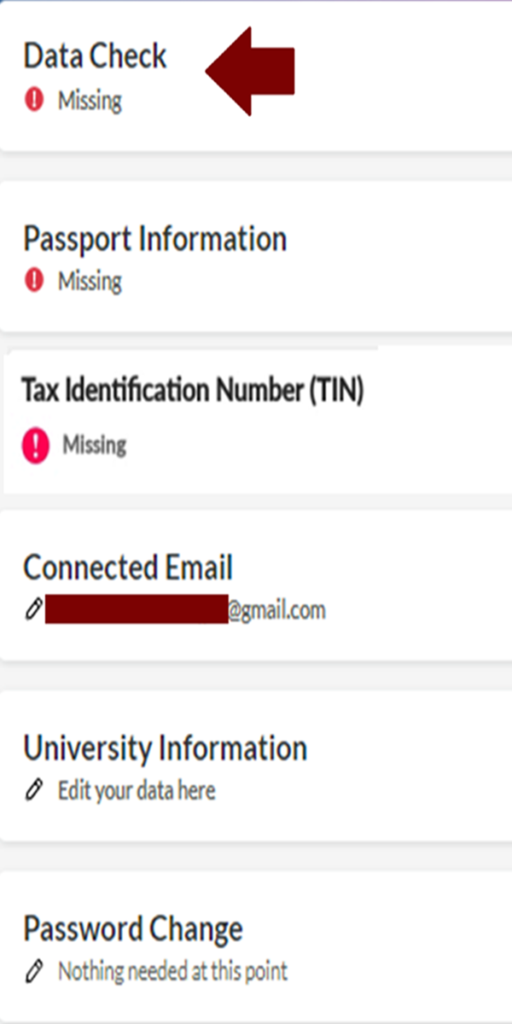
Then this window appears, and we choose the first option, Data Check, as shown in the image.
After confirming the personal information, we enter the passport information, then click Continue as shown in the image.
As in the previous step, this option may not appear for everyone. If it is not visible to you, you can move on to the next step regarding uploading a picture of your passport.
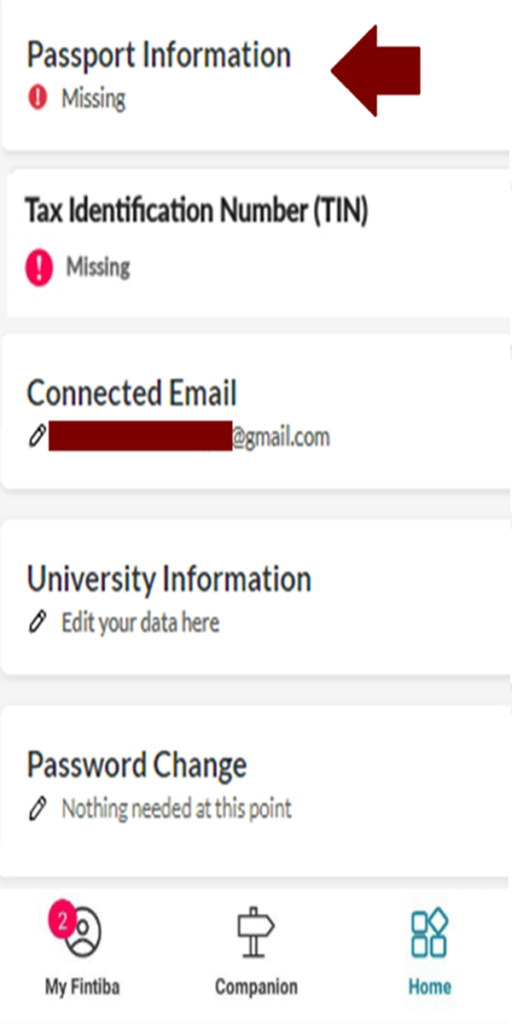
We are now entering the passport data.
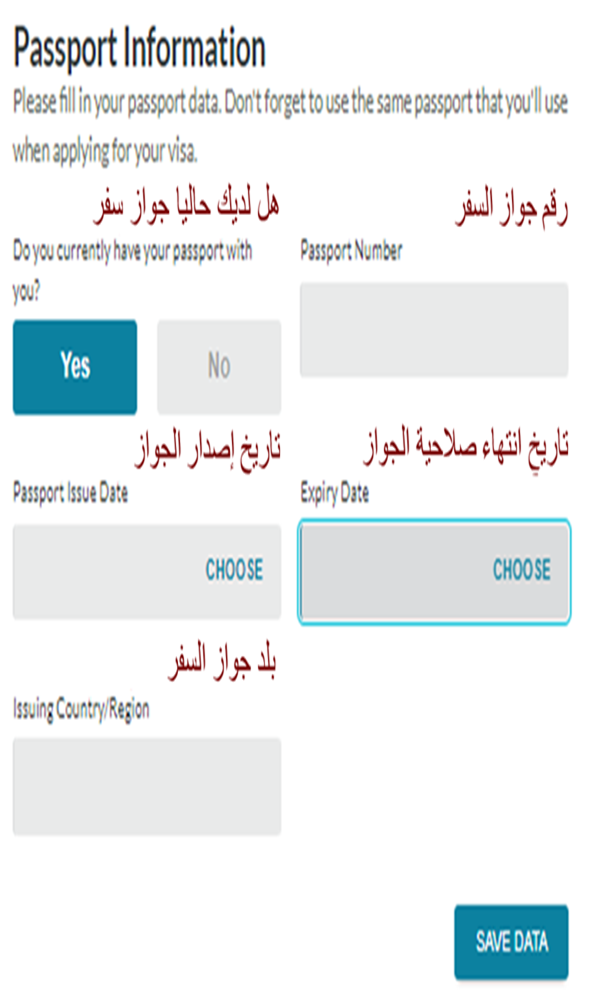
How to upload documents for a Fintiba blocked account step by step
How to upload a passport photo on the Fintiba website
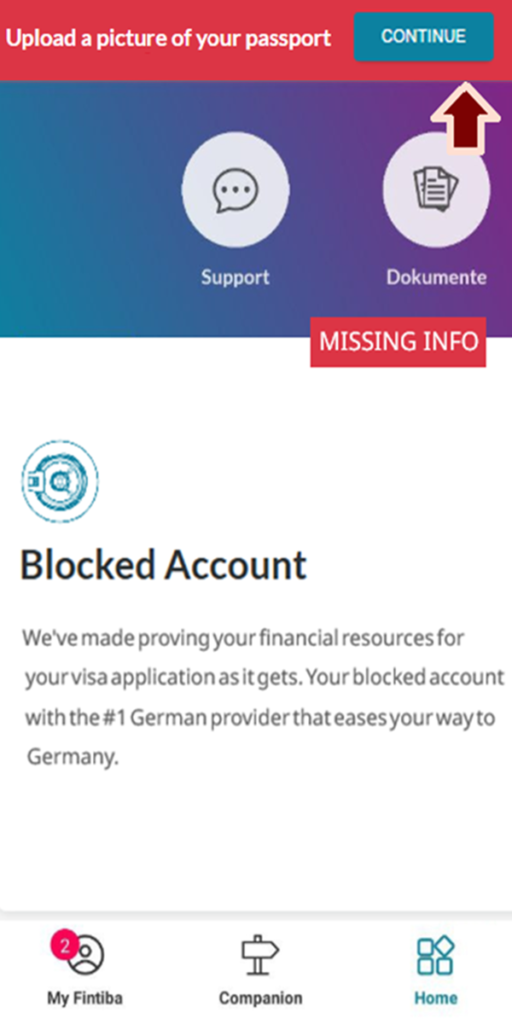
At the top of the main interface, the notification for uploading the passport image shown in the following picture appears, so we click Continue.
Here it should be noted that we prepare the passport file, and it should:
- The data in the file is clearly legible.
- The file is in PDF format.
- The file should be as in the template (the cover with the personal information page) Click here to view a template of the file in the files and templates library.
You can do this at home, as there is no need to scan your passport at a print shop. We can do this using the CamScanner app on your mobile phone. I have published a detailed article explaining this: How to scan any document professionally using the CamScanner app.
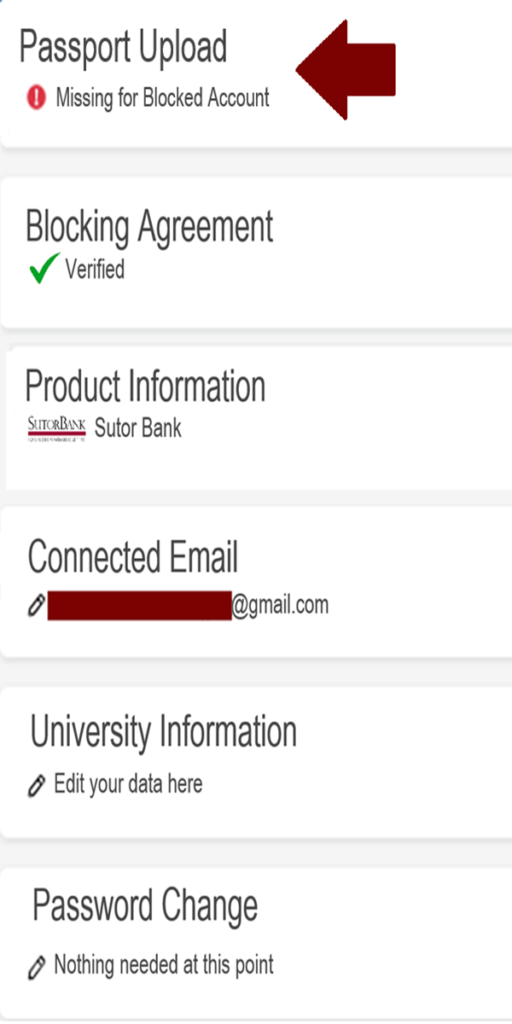
The following window appears, we select Passport Upload as shown in the following image, in order to upload the passport file to the website.
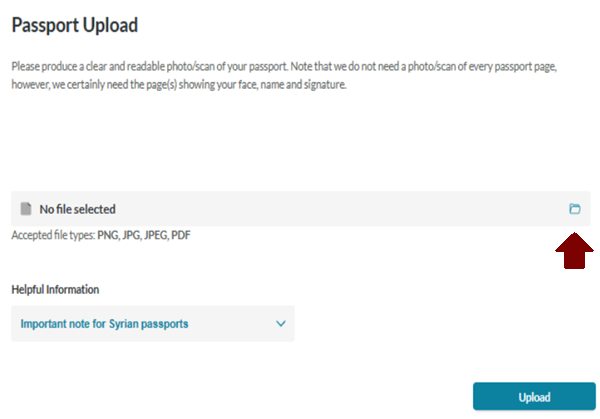
Here we upload the passport file by clicking on the file icon indicated in maroon in the image.
Following the successful file upload process, a notification (We are checking your data) appears at the top. We then wait until the passport verification process is successful, as we will receive an email at our email address informing us of this.

How to upload the selfie with your passport on the Fintiba website
We can proceed with the next step, which is uploading the selfie with the passport, before the passport verification process is complete. If this step does not appear, we wait until we receive the notification to upload the selfie. This notification appears as shown in the following image, and we click Continue.
We would like to note that the selfie with the passport must be:
- as an image (in jpg, jpeg, or png format) or as a pdf file.
- As in the following example image, Click here to view a sample of this file in the files and templates library.
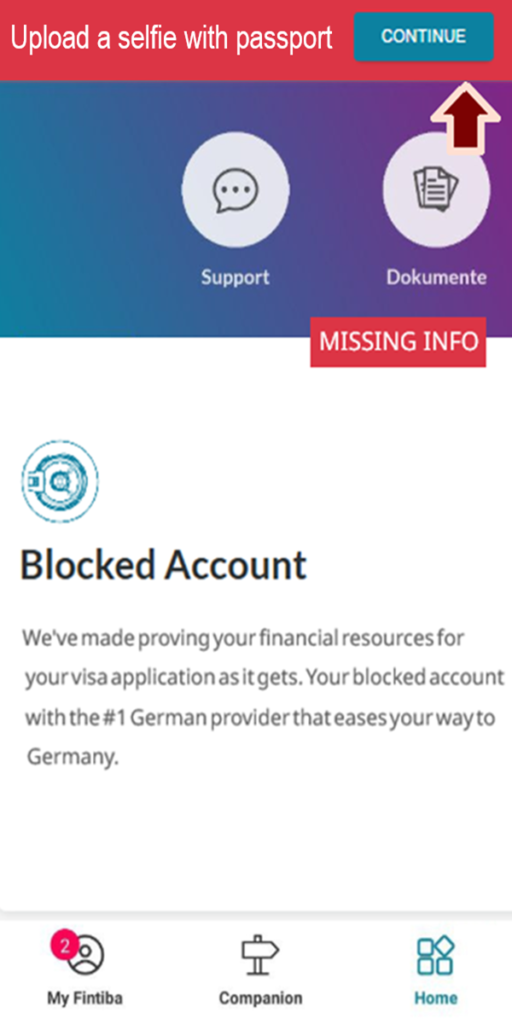
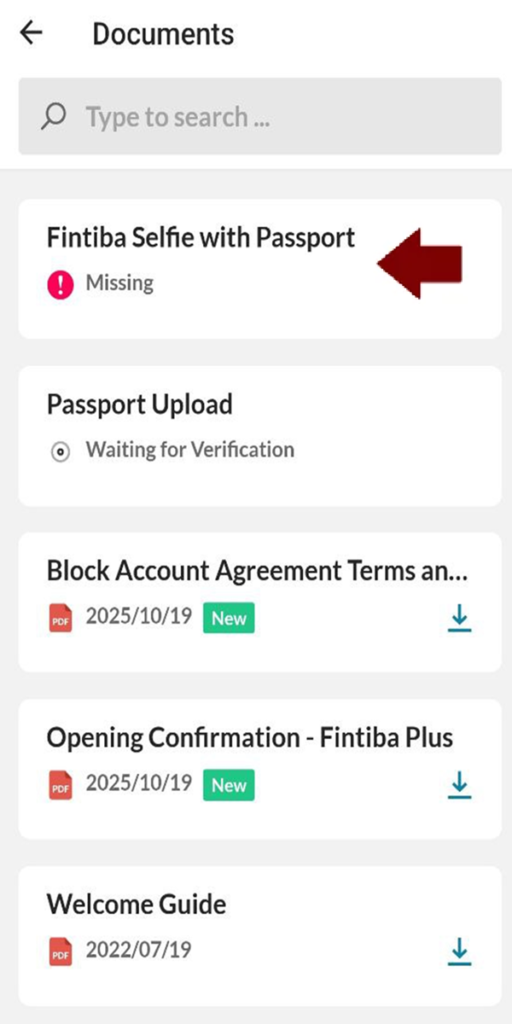
This window now appears for us, so we select Fintiba Selfie With Passport as shown in the following image.
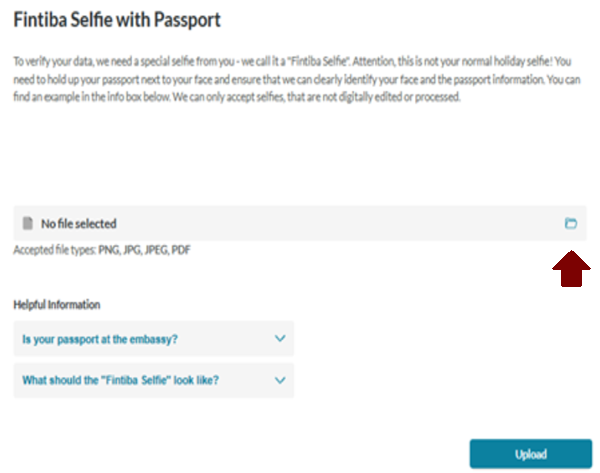
This window then appears, so we click on the icon indicated in the following image, select the file or image, and then choose Upload at the bottom.
After uploading the selfie, this notification appears at the top, so we wait until the verification process is successful, as we will receive an email stating that.

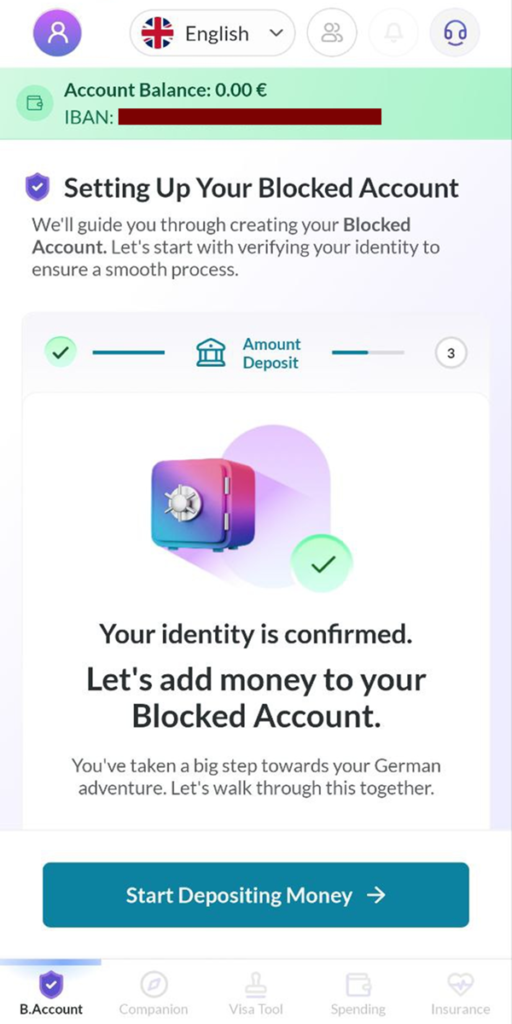
After successful verification and upon logging into the account, the account appears as shown in the image. The next step now is Transfer the funds tTo the blocked bank account, which is an important stage that requires attention to some important banking details, and I have explained that in this dedicated article: The stage of transferring the funds to the Fintiba blocked bank account. You can review it for a complete explanation.
What do you do if you renew your passport after opening your Fintiba blocked account?
During the opening of the blocked bank account, we saw how important the passport is as proof of the account holder's identity, as the questions related to it were answered during the account opening process. After that, a copy of it was uploaded and a selfie was taken with it. Fintiba places special importance on preventing any forgery or the opening of fake accounts. Therefore, after renewing our passport, we must inform the Fintiba platform of this in order to keep our files updated.
We take a picture of the passport, and take a selfie with it as we did previously, and we contact the support department. I previously explained in a YouTube video how to contact Fintiba using the new method after the old email Support@fintiba.com became unavailable, Click here to watch the video on my YouTube channel.
After successfully completing the stage of entering personal data and uploading the required documents to the account, we have taken an important step toward obtaining the confirmation of the blocked bank account that must be presented to the German Embassy. We must always ensure the accuracy of the entered information and the quality of the uploaded files to avoid any delays in the verification process. Do not forget us in your sincere prayers, and our final prayer is that praise be to Allah, Lord of the Worlds.